

Open and edit an item
Click OPEN on any item row to open the item detail sheet. The sheet appears on the right side of the workspace and contains the item’s fields.
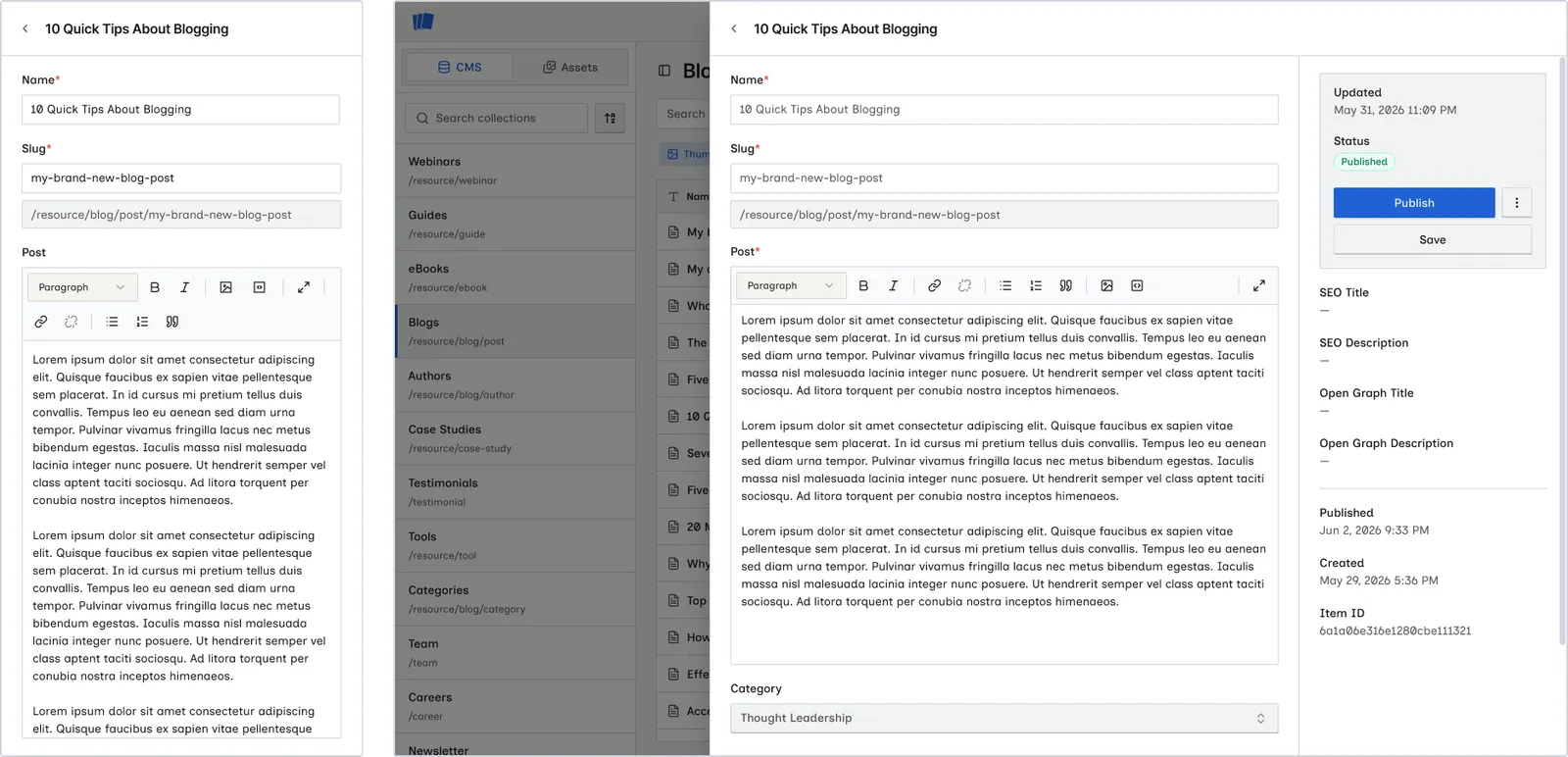
On a phone, the editor fills the screen and the layout adjusts when the on-screen keyboard opens so the field you’re editing stays visible. See Use Wicked CMS on your phone.
Open an item
Find the item
Browse the items table, or use search, filters, or an advanced filter to locate the item.
Edit fields
The detail sheet opens with all collection fields. Change values as needed. See Field types.
Item sheet layout
The detail sheet header includes:
- Back to items: close the sheet and return to the table
- Item name and publish state indicator, either Live or Draft
The main area lists all fields from your collection schema with appropriate editors for each field type.
The sidebar panel (within the sheet) contains the primary actions:
- Save. Save changes as a draft. See Save changes.
- Publish. Publish the item live. See Publish an item.
- Preview. Open the item’s live page on your published site in a new tab. Available when the item is Live.
- More options menu: duplicate, reload, queue, restore live, archive, delete, and Open in Webflow
SEO and Open Graph
The item sheet includes SEO Title, SEO Description, Open Graph Title, and Open Graph Description. Each field shows a character count at the bottom so you can track length as you edit.
Changed fields
Fields that differ from the live (published) version are highlighted with a blue label. You can reset individual fields to their live values.
On multi-locale sites, fields also show a locale badge when editing a non-primary locale. The badge highlights in blue when the field differs from the primary locale. See Reset a changed field.
Edit referenced items
When an item has Reference or Multi-reference fields, click Edit (pencil) next to a linked item to open it in the detail sheet. The referenced item opens above the current item, and Wicked CMS keeps your unsaved changes on the parent item.
Use Save, Publish, and other actions on the referenced item as usual. Click Back to return to the parent item. If the linked item references another item, you can open it too. Wicked CMS adds each item to the stack.
Close the sheet
Click Back to items or click outside the sheet. If you have unsaved changes, Wicked CMS prompts you to keep editing or discard changes.