

Advanced filter
Combine multiple filter rules with And or Or
Use an advanced filter when you need to match several fields or apply more than one condition to the same field.
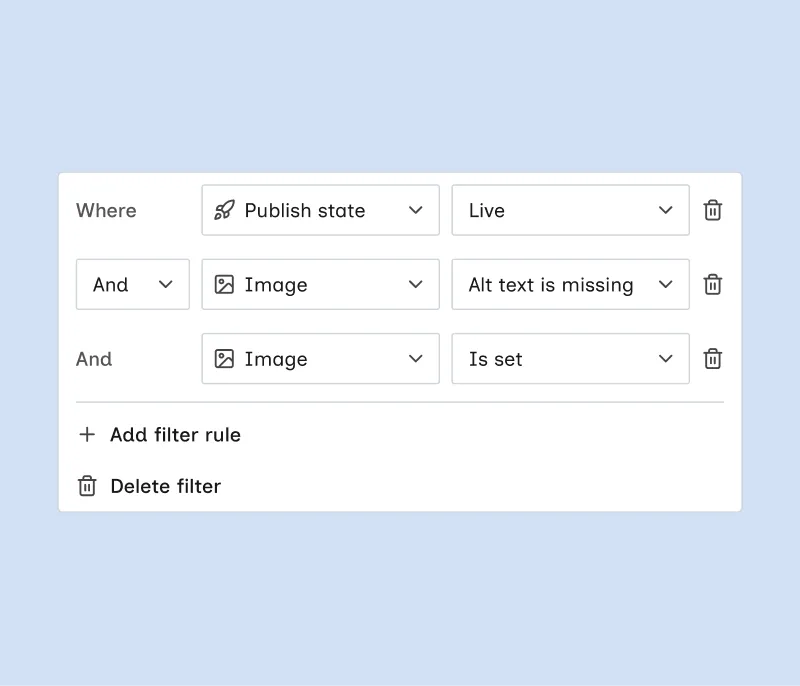
Add an advanced filter
You can add only one advanced filter at a time. Regular filter chips remain available alongside it.
Build rules
Each rule uses a metadata or collection field and one of the conditions listed in Filter items.
- The first rule starts with Where
- On the second rule, choose And (match all rules) or Or (match any rule). Later rules use the same choice.
- Metadata rules include Slug and Item ID. Use them to narrow a rule set to a specific Webflow item or group of URLs.
- You can use the same field in more than one rule. For example, an Image can be Is set and have Alt text is missing.
- Image fields also support Alt text is set and Alt text is missing
Manage the advanced filter
- Click the advanced filter chip to open the panel and edit rules
- Use the trash control on a rule to remove that rule
- Click Delete filter to remove the entire advanced filter
- Click Clear all when multiple filters are active to clear every filter, including the advanced filter
On a phone, the advanced filter opens as a bottom sheet with stacked controls. See Use Wicked CMS on your phone.
Combine with search and other filters
Advanced filters work with search and regular filter chips. Items must match the search query and every active filter.