

Manage your Webflow connection
Wicked CMS maintains a Webflow OAuth connection for your account.
Re-connect Webflow
If your Webflow connection was revoked or expired, or Wicked CMS asks you to reconnect because a permission such as assets:write or pages:write is missing:
- Sign in to Wicked CMS
- Click Connect Webflow on the connect screen, Reconnect Webflow in Pages or Assets, or Connect Webflow in the user menu
- Complete authorization on Webflow
See Connect Webflow. Uploading and editing assets requires Webflow assets:write access. Editing page metadata requires pages:write access. See Reauthorize page editing.
Unlink all sites
To fully disconnect Wicked CMS from your Webflow account, use Unlink all sites on the Your Webflow sites screen.
Go to Your Webflow sites
Click the Wicked CMS logo from any workspace, or choose Manage Webflow from the user menu.
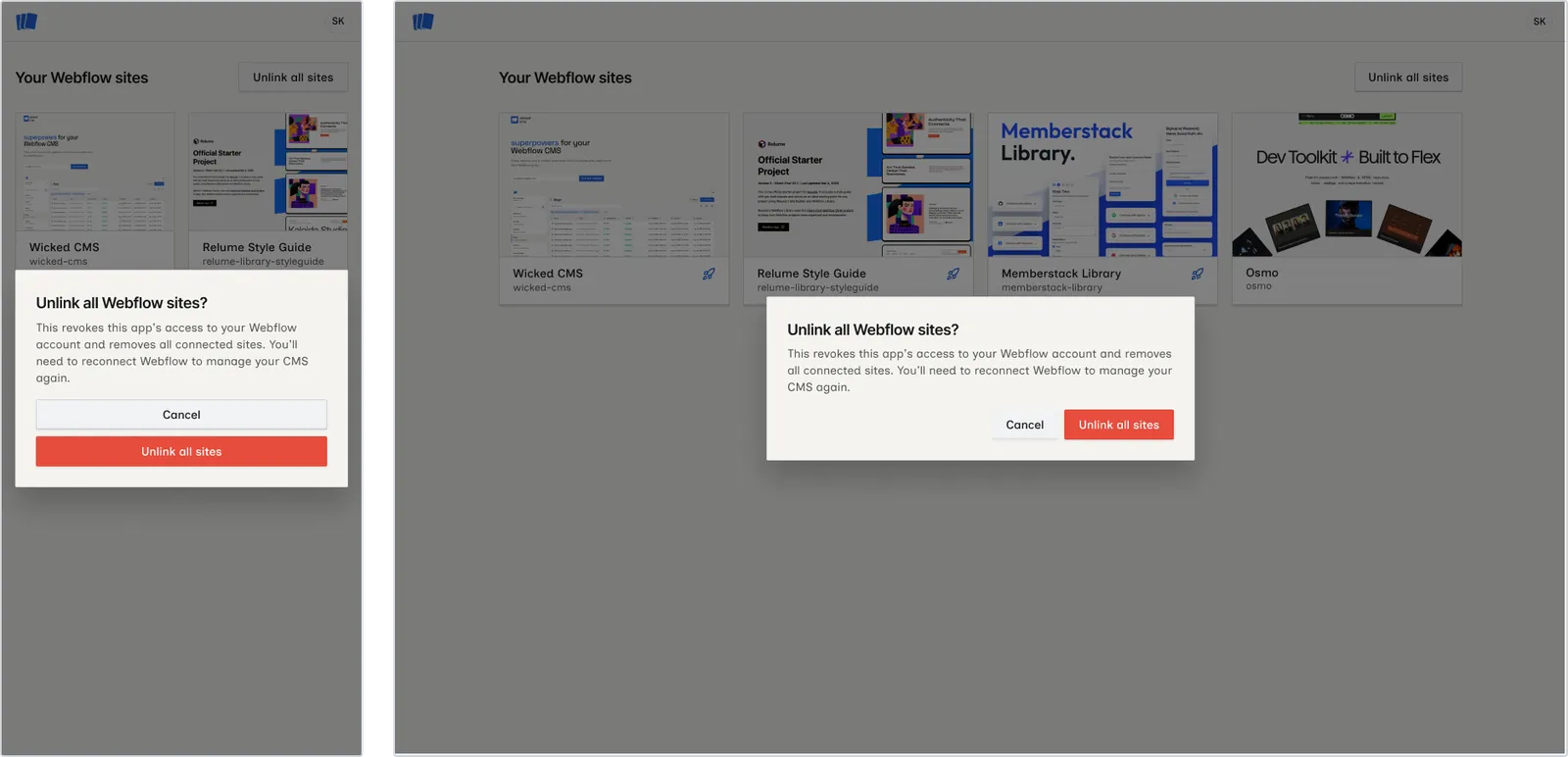
Unlink all sites revokes access for your entire Webflow account, not individual sites. Wicked CMS does not support per-site disconnects.
After unlinking
After a successful unlink, you are redirected to the home screen and must Connect Webflow again before managing CMS content or assets.
Per-user connections
Each Wicked CMS user connects their own Webflow account. Unlinking affects your connection only. It does not affect other team members’ connections.