

View items in a collection
After you select a collection, Wicked CMS displays all items in a virtualized table. This is your primary view for scanning, opening, and acting on CMS content.
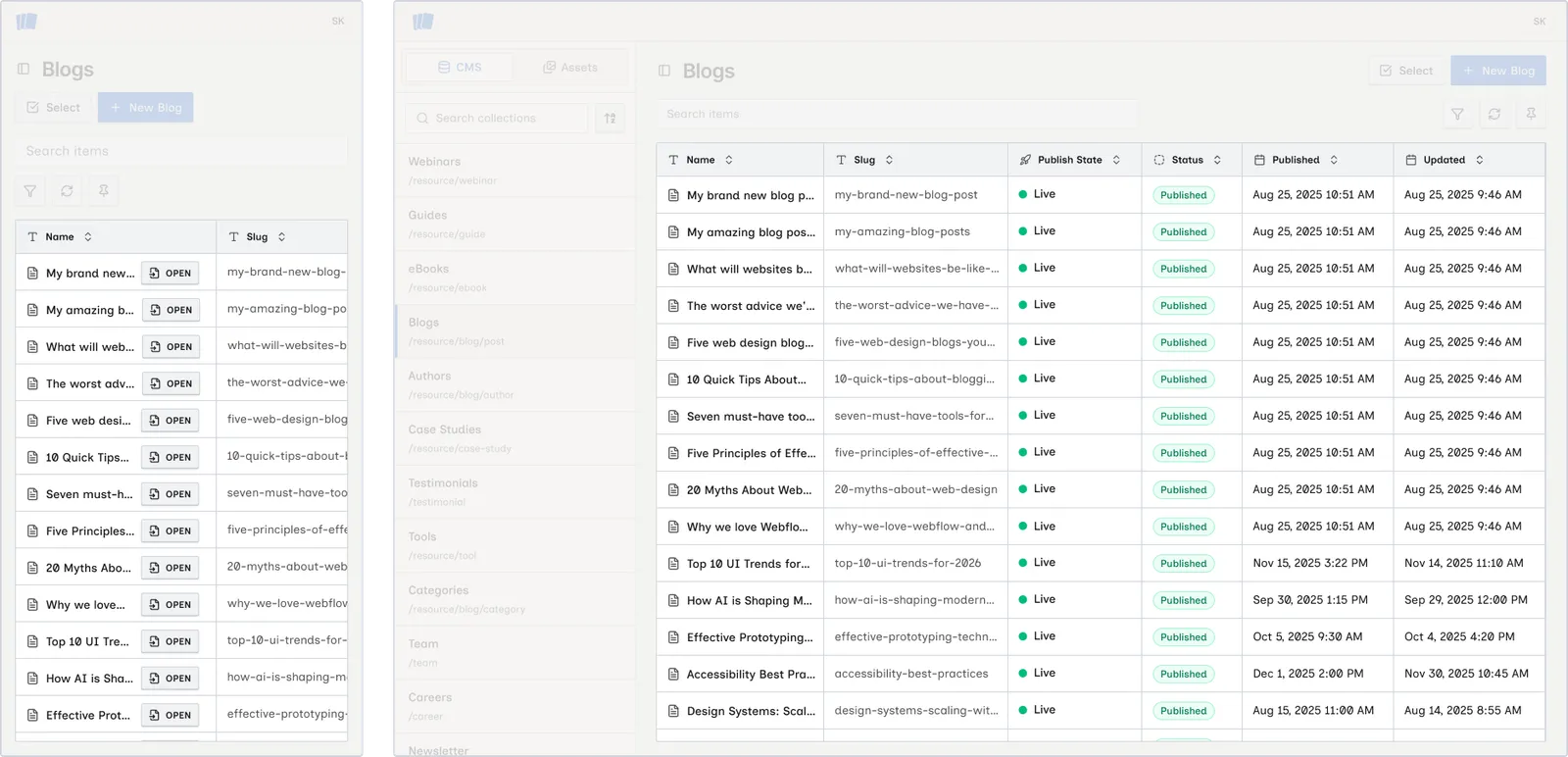
Default columns
By default the table shows these metadata columns:
The Archive, Draft, and Item ID metadata columns are hidden by default. Your collection schema fields may also be hidden. Use column visibility to show them.
Sort items
Click a column heading to sort the table by that property. Click it again to reverse the order. The Item ID column sorts IDs alphanumerically, which is useful when comparing records from Webflow or an export.
Wicked CMS remembers the sort order for each collection during your session.
Open an item
Hover over a row (desktop) and click OPEN, or click the row’s name area, to open the item detail sheet on the right. See Open and edit an item.
Status badges
The Status column shows one of these values:
- Published
- Changes Queued to Publish
- Item Queued to Publish
- Queued to be Archived
- Changes in Draft
- Archived
- Not published
See Understand item status for what each status means.
Publish state
The Publish State column shows Live (published to the site) or Draft (saved but not live).
Loading and empty states
Select multiple items
Click Select in the collection header to enter selection mode and edit, update, duplicate, or export multiple items at once.
Toolbar actions
Above the table, the toolbar provides:
- Search items: filter rows by text
- Toggle filters: show or hide the filter bar (filters and advanced filter)
- Reload items: refresh from Webflow
- Toggle columns: customize visible columns