

Switch between locales
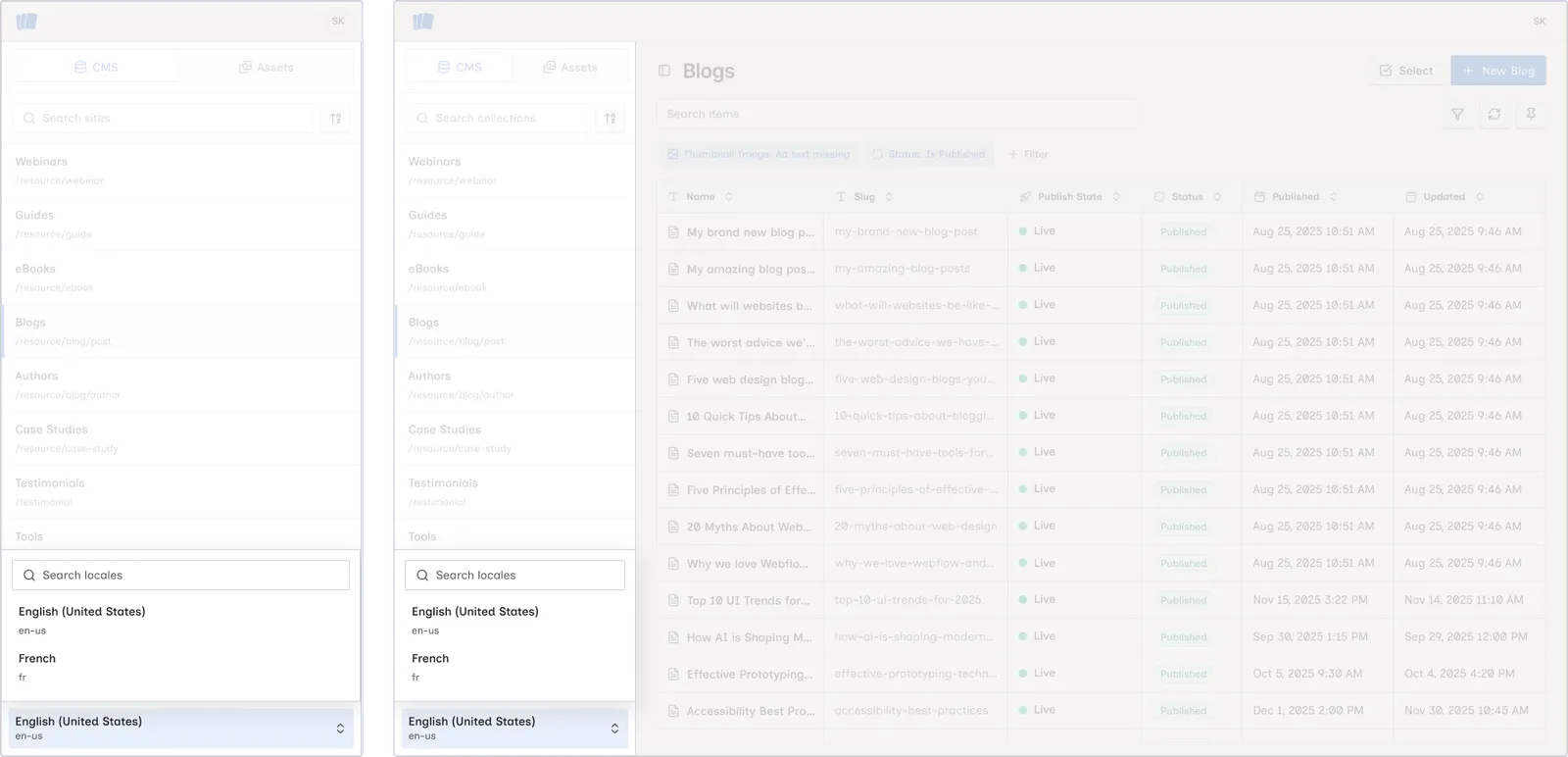
If your Webflow site has multiple locales configured, Wicked CMS shows a LocaleSwitcher in the sidebar footer. Use it to view and edit CMS items in a specific language or region.
The locale switcher appears only on multi-locale sites. Single-locale sites do not show this control.
Switch locale from the sidebar
Open the locale switcher
At the bottom of the sidebar, click the locale trigger. While locales load, it shows Loading locales…. With no selection, it shows Default locale.
What changes when you switch locale
- The items table reloads with items for the new locale
- Field values reflect the locale-specific CMS item
- Status and publish state update per locale
- An open item detail sheet updates to show the same item in the new locale (if a variant exists)
- In a non-primary locale, each field shows a locale badge. The badge highlights when the value differs from the primary locale. See Reset a changed field.
Locale status in the item sheet
For multi-locale sites, the item detail sheet includes a locale status panel showing each locale’s publish state and status. You can click OPEN on another locale’s row to switch the open item to that locale.
See Locale status panel and Locale-scoped actions.
Creating items in specific locales
When you create or duplicate an item on a multi-locale site, Wicked CMS asks whether to apply the action to the Current locale only or All locales. You cannot add an item to additional locales later, so choose All locales at creation time if needed.
See Create a new item and Locale-scoped actions.