
Your Webflow sites
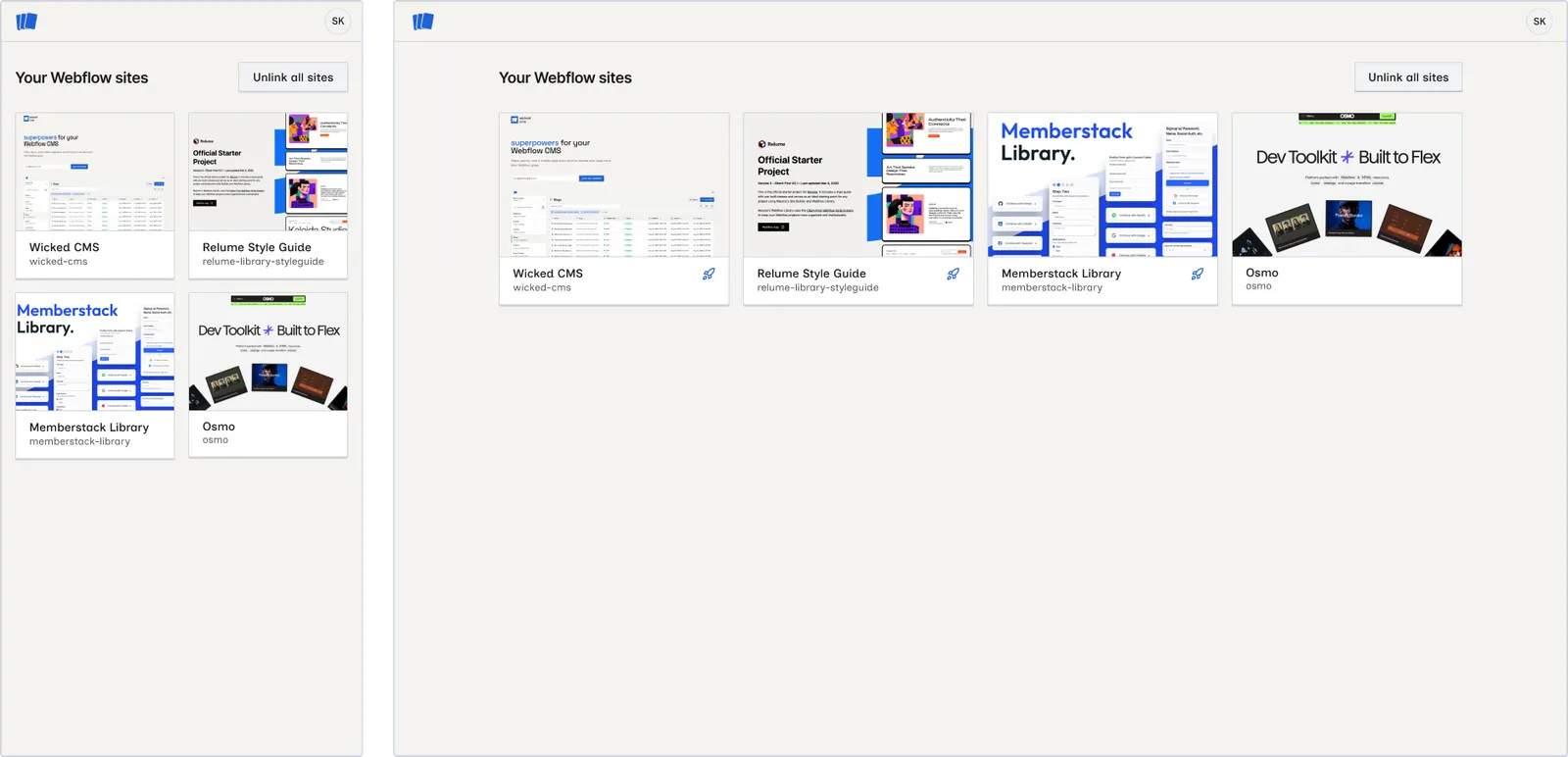
After you connect Webflow, Wicked CMS shows Your Webflow sites, a grid of every Webflow site your account can access.
Site cards
Each card shows:
- A preview image of the site (or a placeholder if no preview is available)
- The site name
- The short name
- A published indicator if the site has been published at least once
Click a site card to open its site workspace. The workspace opens in CMS. Use the sidebar switcher to open Assets, Pages, or Analyze.
The sites grid works the same in your phone’s browser. Open app.wickedcms.com and tap a card. See Use Wicked CMS on your phone.
Open a site in Wicked CMS
Go to Your Webflow sites
This is the home screen you see after you sign in and connect Webflow. Click the Wicked CMS logo from any site workspace to return here.
Start editing
The site workspace loads in CMS with collections in the sidebar and items from the first collection in the table. See Browse collections. Use the section switcher to open Assets, Pages, or Analyze.
What loads when you open a site
When you enter a site workspace, Wicked CMS:
- Opens the CMS section. You can switch to Assets, Pages, or Analyze at any time.
- Loads all CMS collections for that site
- Selects the first locale (if the site has multiple locales configured)
- Auto-selects the first collection (sorted A–Z by name)
- Loads and displays items for that collection
You can switch the collection, locale, or site section at any time from the sidebar.
Unlink all sites
From the sites grid, click Unlink all sites in the top-right to revoke Wicked CMS access to your entire Webflow account.
Unlink all sites applies to your entire account. It removes access to every connected site. Wicked CMS does not support per-site unlinking. You must Connect Webflow again before using the app.
See Manage your Webflow connection for details on the unlink dialog and re-connecting.