

Reset a changed field
When you edit a field on a previously published item, Wicked CMS compares your changes to the live (published) version. Changed fields are highlighted so you can spot differences and reset individual fields if needed.
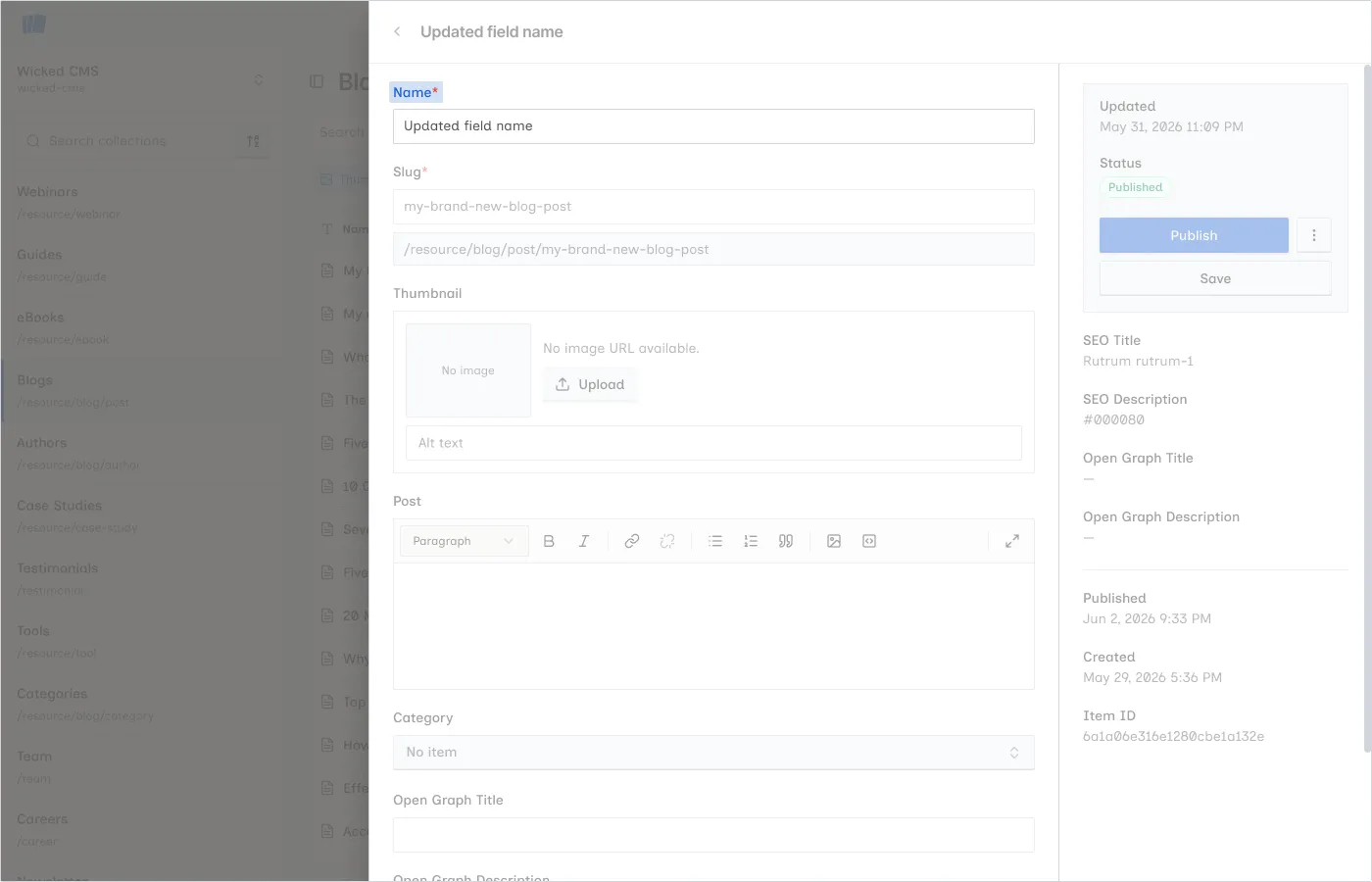
Identify changed fields
Fields that differ from the live version show a blue highlight on the field label. Hover over the label to see the tooltip:
Option-click or Alt-click to reset to the live value.
Reset one field
What reset does
Resetting a field restores only that field to its live published value. Other edited fields are unaffected. Reset does not save or publish. It changes the draft in your current editing session.
There is no Reset all fields button. Reset works one field at a time using Option-click or Alt-click on each changed field label.
Reset a field to the primary locale value
On multi-locale sites, when you edit an item in a non-primary locale, each field label shows a locale badge (e.g., fr-fr) on the right side. If the field’s value differs from the primary locale, the badge highlights in blue.
Find a field that differs from the primary locale
Look for the blue locale badge on the right side of the field label.
Live diff and locale diff are independent. A field can show both a blue field label (differs from live) and a blue locale badge (differs from primary locale) at the same time. Each has its own reset control.
Reset vs. Reload from Webflow
Use field reset when you want to undo changes to one field. Use Reload an item from Webflow to discard all local edits and reload the full item from Webflow.
Restore live (published version)
To revert the entire item to its last published state, use Restore live from the item ⋮ menu. See Restore live.
Related guide
After resetting fields, click Save to persist the reverted values, or Publish if you want to update the live site.