

Browse and find pages
Open a site, then click Pages in the section switcher at the top of the sidebar.
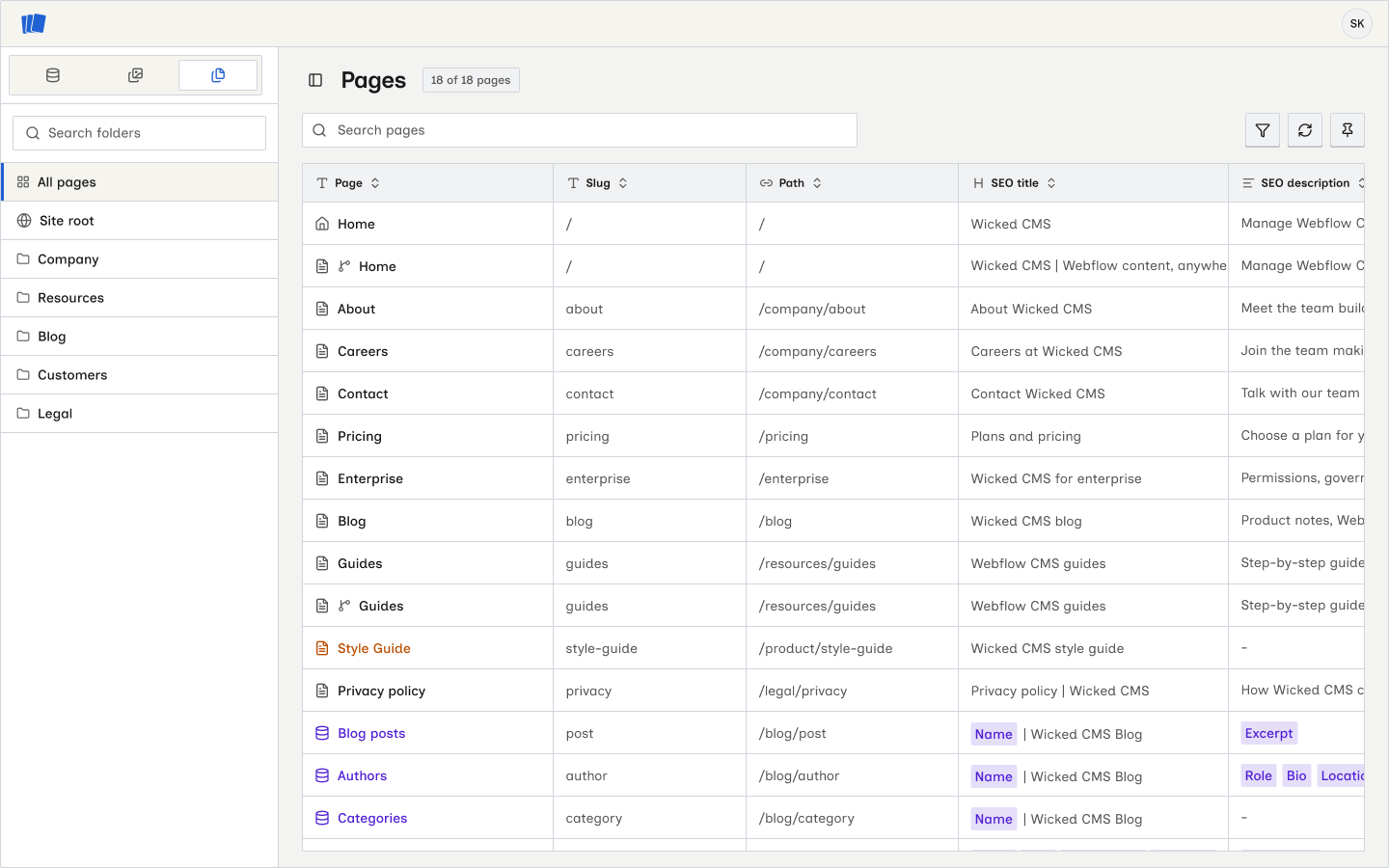
Browse pages and folders
The sidebar follows the folders and paths set in Webflow:
- All pages shows every page on the site.
- Site root shows pages that are not inside a folder.
- A folder shows the pages directly inside it.
Use Search folders to narrow the folder list. Folder search does not filter the pages table.
The table includes the home page, static pages, CMS collection templates, utility pages, and page branches. The icon beside each page name identifies its type. Draft pages use a warning color, and CMS template pages use the CMS field color.
Search and filter
Use Search pages to search page names, slugs, paths, and SEO titles within the current folder view.
Click Toggle filters to filter by:
- Page name, slug, or path
- Whether an SEO title or description is set
- Whether each Open Graph value is linked to SEO, custom, or empty
- Page type or draft status
Search and filters work together. A page must match both to stay in the table.
Choose table columns
The table can show the page name, slug, path, SEO title, SEO description, Open Graph title, Open Graph description, and last updated time. Click the column control to show, hide, or reorder columns. Click a column heading to sort by it.
Click Reload pages to fetch the current page list and settings from Webflow.
Open page details
Hover over a page name and click Open. The detail sheet shows its title, slug, SEO settings, Open Graph settings, and previews.
You can browse pages without the Edit Page data permission. Editing requires a Webflow connection with pages:write access. If your connection does not have it, see Reauthorize page editing.