

Use Wicked CMS on your phone
Wicked CMS runs in your phone or tablet browser. You can update Webflow content without installing an app or using a desktop computer.
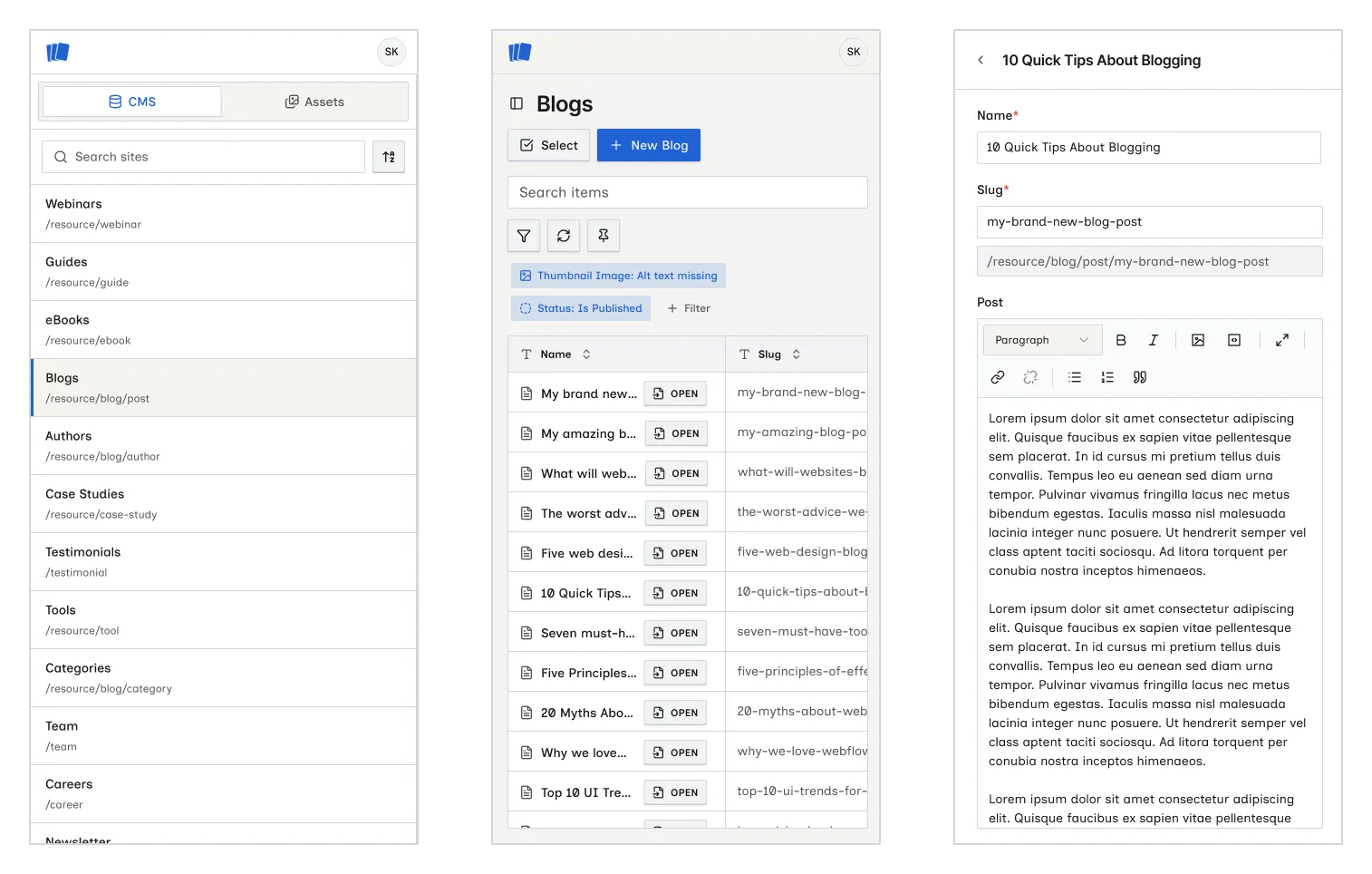
Sign in from your phone
Open app.wickedcms.com in your phone’s browser. Sign in with Continue with email, Continue with Google, or Continue with GitHub, then connect your Webflow account. See Create an account and Connect Webflow.
Wicked CMS runs in the browser, so you’ll need an internet connection to load and save your content. There’s nothing to download, and it doesn’t work offline.
Find your way around
To keep your content front and center on a small screen, the sidebar is tucked behind a menu instead of always showing. It contains the site section switcher, collections or folders, and the locale switcher.
- Tap the sidebar toggle button to open it.
- Choose a workspace section, collection, folder, or locale, then tap the content you want to open.
It’s the same navigation covered in Browse collections, Switch workspace sections, and Switch between locales, just sized for your phone.
Edit and publish
Tap an item to open it. The editor fills the screen so you can scroll through fields, make changes, and click Save or Publish. When you tap a field, the page keeps it above the keyboard.
Other actions
The rest of Wicked CMS behaves just like it does on a computer:
- Search, filter, and advanced filter items
- Save drafts and publish items
- Create and duplicate items
- Manage assets from the Assets section
- View site analytics from Analyze, if the Webflow workspace has the add-on
- Open another site from Your Webflow sites, or switch locales