

Connect Webflow
After signing in, connect your Webflow account so Wicked CMS can access your sites, CMS collections, pages, and asset library.
Connect from the welcome screen
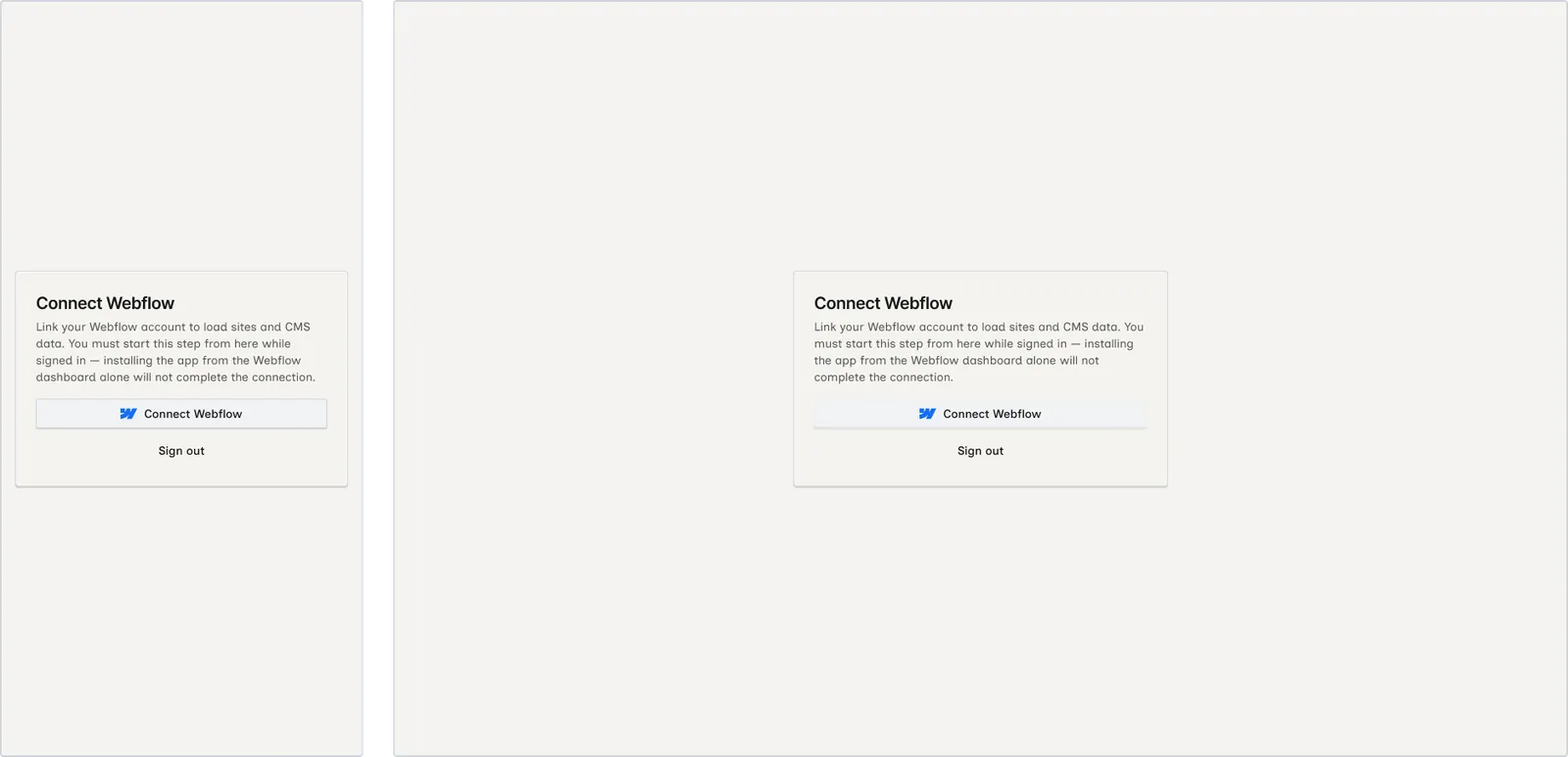
When you first sign in, Wicked CMS shows the Connect Webflow screen.
Read the connection notice
The screen explains that you must start this step from Wicked CMS while signed in. Installing the app from the Webflow dashboard alone will not complete the connection.
Click Connect Webflow
Click Connect Webflow. The button shows Redirecting to Webflow… while Wicked CMS sends you to Webflow to authorize access.
Sign out from the connect screen
If you signed in with the wrong account, click Sign out on the Connect Webflow screen to return to the login page.
You must click Connect Webflow from within Wicked CMS while signed in. Installing or authorizing the app only from the Webflow dashboard does not link your account in Wicked CMS.
Connection errors
If the connection check fails after sign-in, Wicked CMS shows Connection check failed with a Retry button. Click Retry to run the check again.
Common causes:
- Temporary network or Webflow API issues
- An incomplete OAuth callback (browser closed before redirect finished)
- Webflow authorization was denied or revoked
Permissions for Page Manager
New connections ask for permission to read and edit page data. Existing connections that do not include the Edit Page data permission must reauthorize Webflow before they can edit page settings.
Related guide
After connecting, open a site from Your Webflow sites.