

Browse collections
Each Webflow site has one or more CMS collections (content types such as Blog Posts, Products, or Team Members). Wicked CMS lists them in the left sidebar when CMS is selected in the site section switcher.
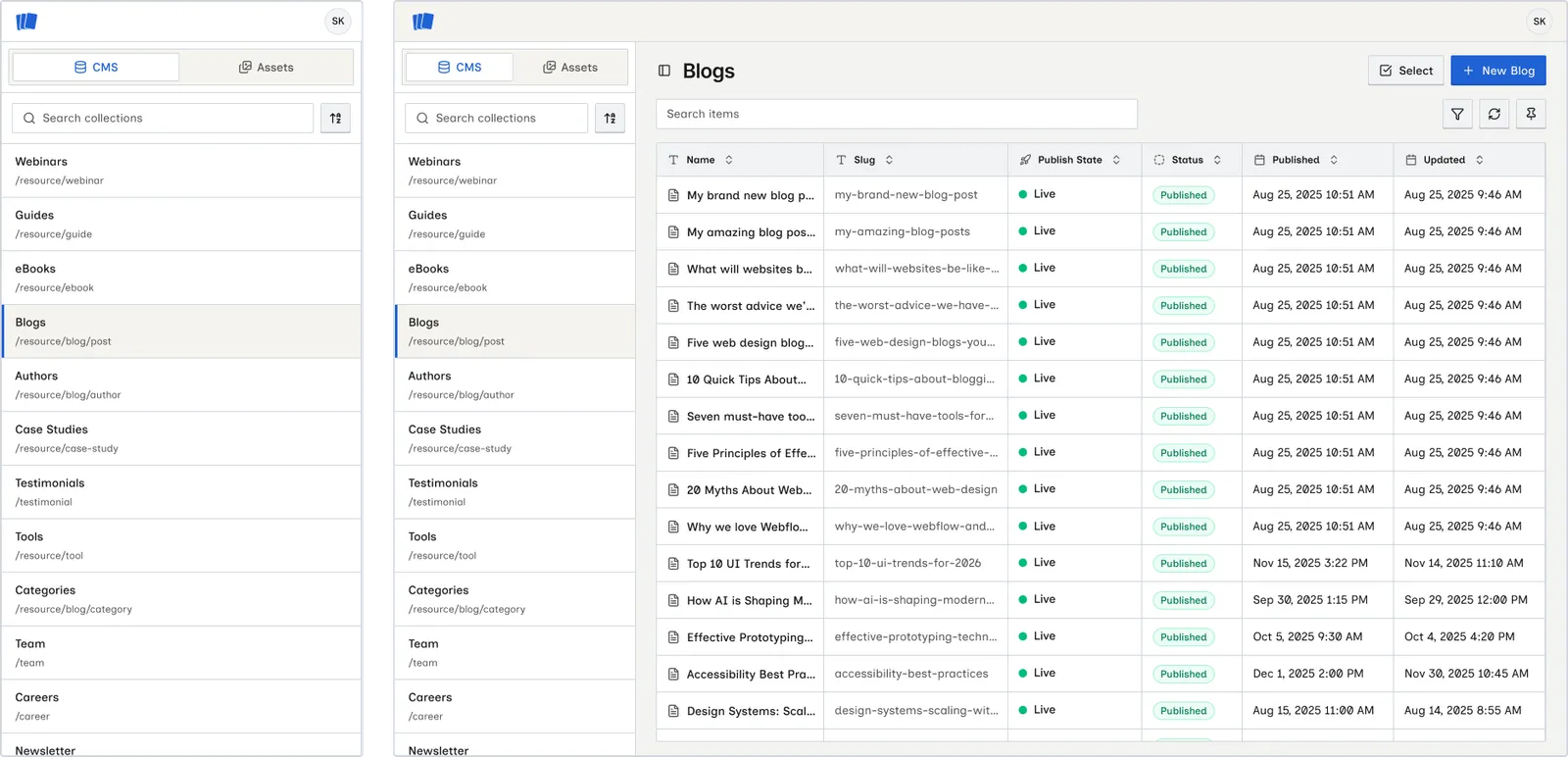
Collection list
When you open a site, Wicked CMS loads all collections and displays them in the sidebar. It sorts collections alphabetically (A–Z) by name. Click Assets in the sidebar switcher to manage the site asset library. See Manage assets.
The first collection in the list is auto-selected, and its items appear in the main table.
On a phone, the sidebar slides in when you tap the sidebar toggle button instead of staying on screen. See Use Wicked CMS on your phone.
Select a collection
Click a collection name in the sidebar to view its items. The main panel updates with:
- The collection title
- The items toolbar (search, filters, reload, columns)
- The items table
Search collections
Use the search field above the collection list to filter collections by name. This helps on sites with many collections.
What you see for each collection
After you select a collection, the main panel heading shows its name. The primary action button starts with New and uses the collection’s singular name, such as New Blog Post for a Blog Posts collection. See Create a new item.