

Reauthorize page editing
Some existing Webflow connections may not include permission to edit page data.
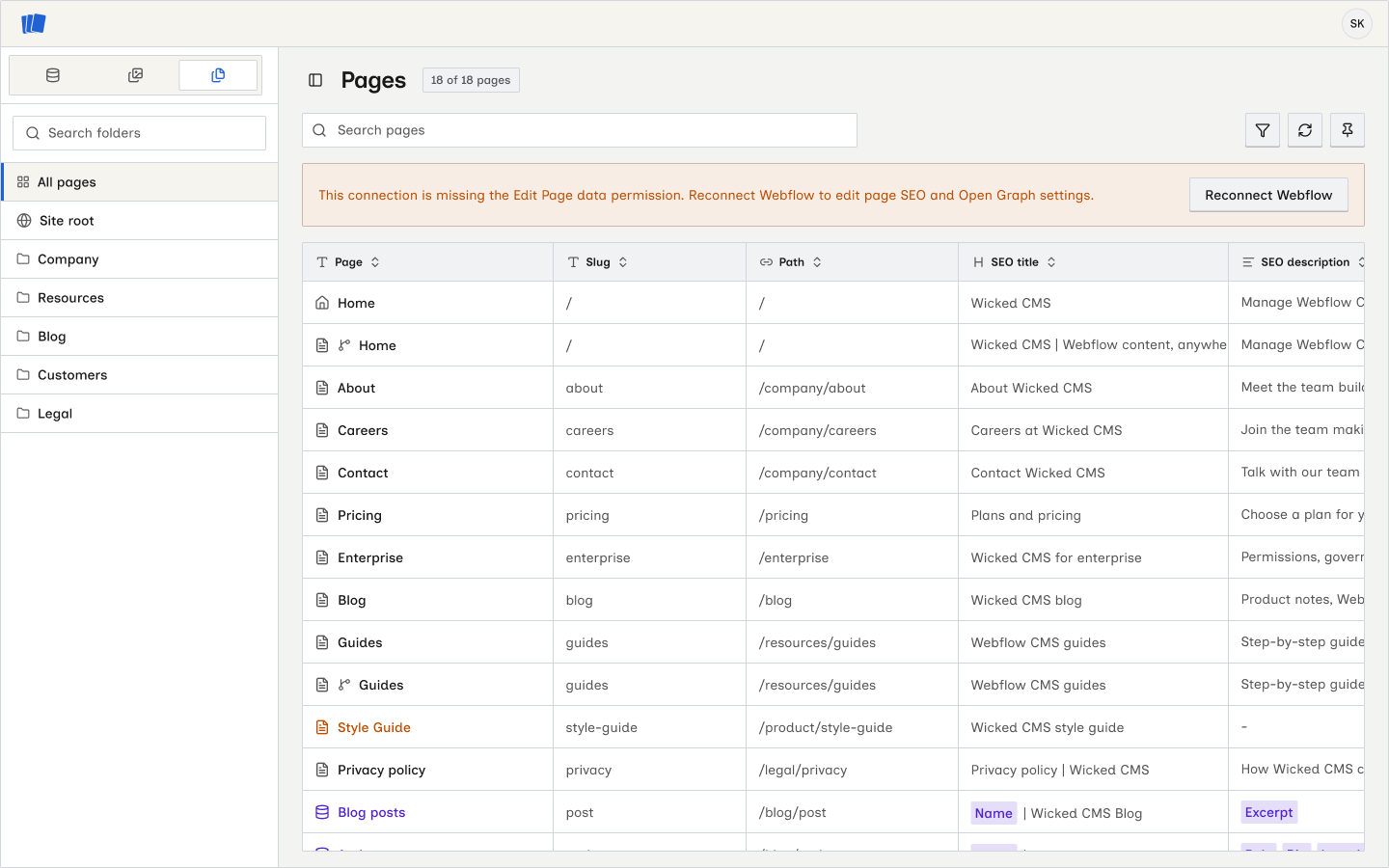
Why Wicked CMS asks you to reconnect
Page Manager reads page names, paths, SEO settings, and Open Graph settings. Saving changes is a separate Webflow capability. Webflow protects it with the Edit Page data permission, which Wicked CMS records as the pages:write scope.
Wicked CMS cannot add a scope to an authorization you approved earlier. You must return to Webflow and approve the updated permission request. Reconnecting updates this permission. It does not mean your current connection is broken.
Without pages:write, you can still browse the Pages table and open page details. The fields and Save button stay disabled.
The banner reads: “This connection is missing the Edit Page data permission. Reconnect Webflow to edit page SEO and Open Graph settings.”
Reauthorize from Pages
Click Reconnect Webflow
The permission banner appears above the pages table. Click Reconnect Webflow.
New users approve Edit Page data during their first Webflow connection, so they do not need this extra step.
Start the reconnect flow from Wicked CMS. Installing the app again from the Webflow dashboard does not complete the in-app connection flow.
If reauthorization does not finish
Return to Pages and click Reconnect Webflow again if you cancel the Webflow consent screen. If Webflow rejects the request or the banner remains after approval, see Manage your Webflow connection.