

Product updates and release notes for Wicked CMS
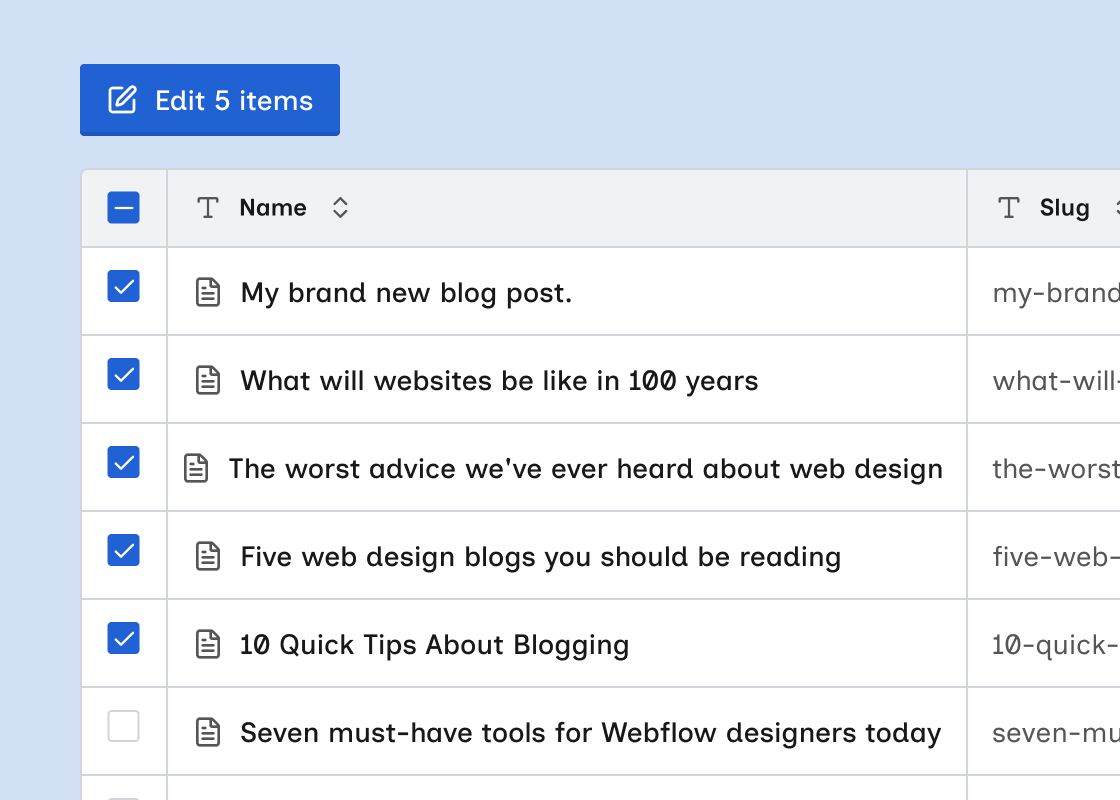
Edit multiple items
Change field values on several CMS items at once from select mode.
What’s new?
- Edit items in the Update items menu. It opens one editor for every selected item.
- Fields start empty. Wicked CMS applies only the fields you change to each selected item.
- Untouched fields keep their existing values. Clearing a field clears it on every selected item.
- Slug cannot be edited in bulk.
- Click Save, Publish, or Queue for next site publish to apply changes.
- A progress dialog tracks the update. Select mode exits when it completes.
How to edit selected items
Choose items
Click checkboxes to select individual items, or use the header checkbox to select all visible items.
To edit one item with live diff, status, and locale details, open it with OPEN. See Open and edit an item.
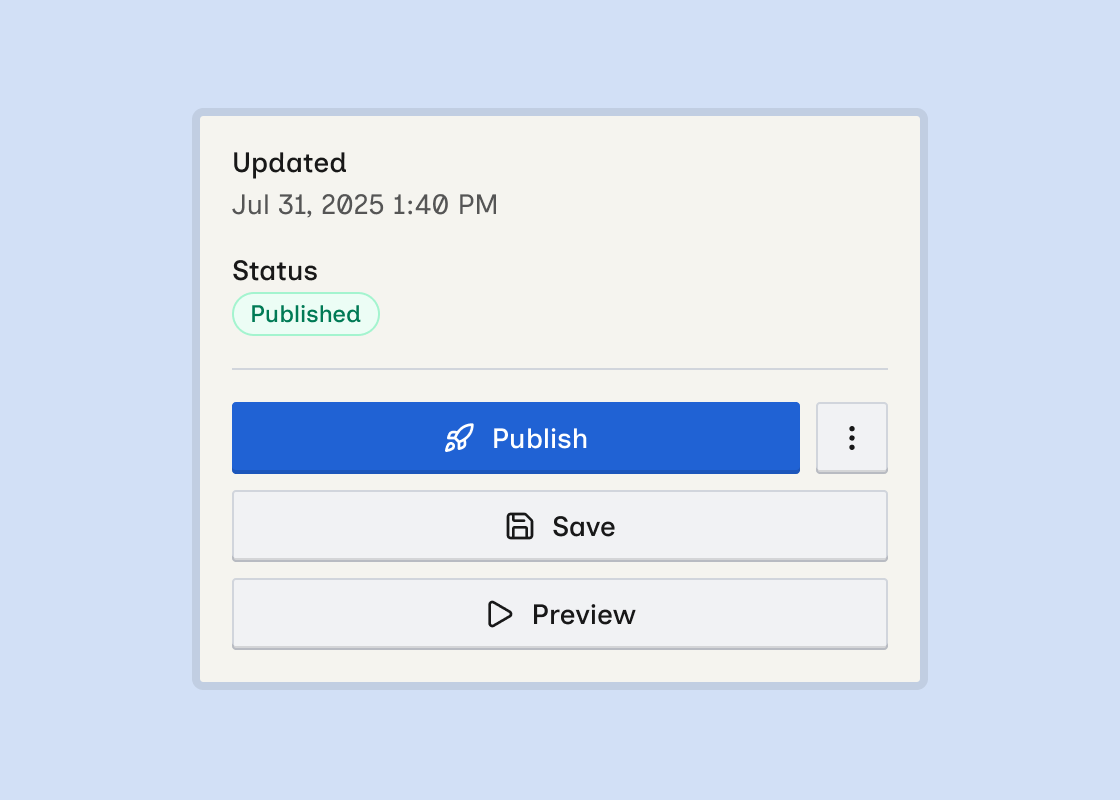
Preview live item
Open a Live item on your published site from the item detail sheet.
What’s new?
- Preview button in the item detail sheet sidebar. It opens the item’s live page in a new tab.
- Available when the item is Live; disabled until you publish, with tooltip Publish this item to preview it live
- Uses your site’s custom domain when one is connected; otherwise your site’s webflow.io staging URL
- On multi-locale sites, the URL includes the locale subdirectory for the locale you’re viewing
- The path shown under the slug field uses the same locale prefix
How to preview a live item
To edit the item in Webflow’s Designer instead, use Open in Webflow from the ⋮ menu. See Open in Webflow.