

Product updates and release notes for Wicked CMS
Manage site assets alongside CMS
Browse, upload, and manage files in your Webflow asset library from Wicked CMS.
What’s new?
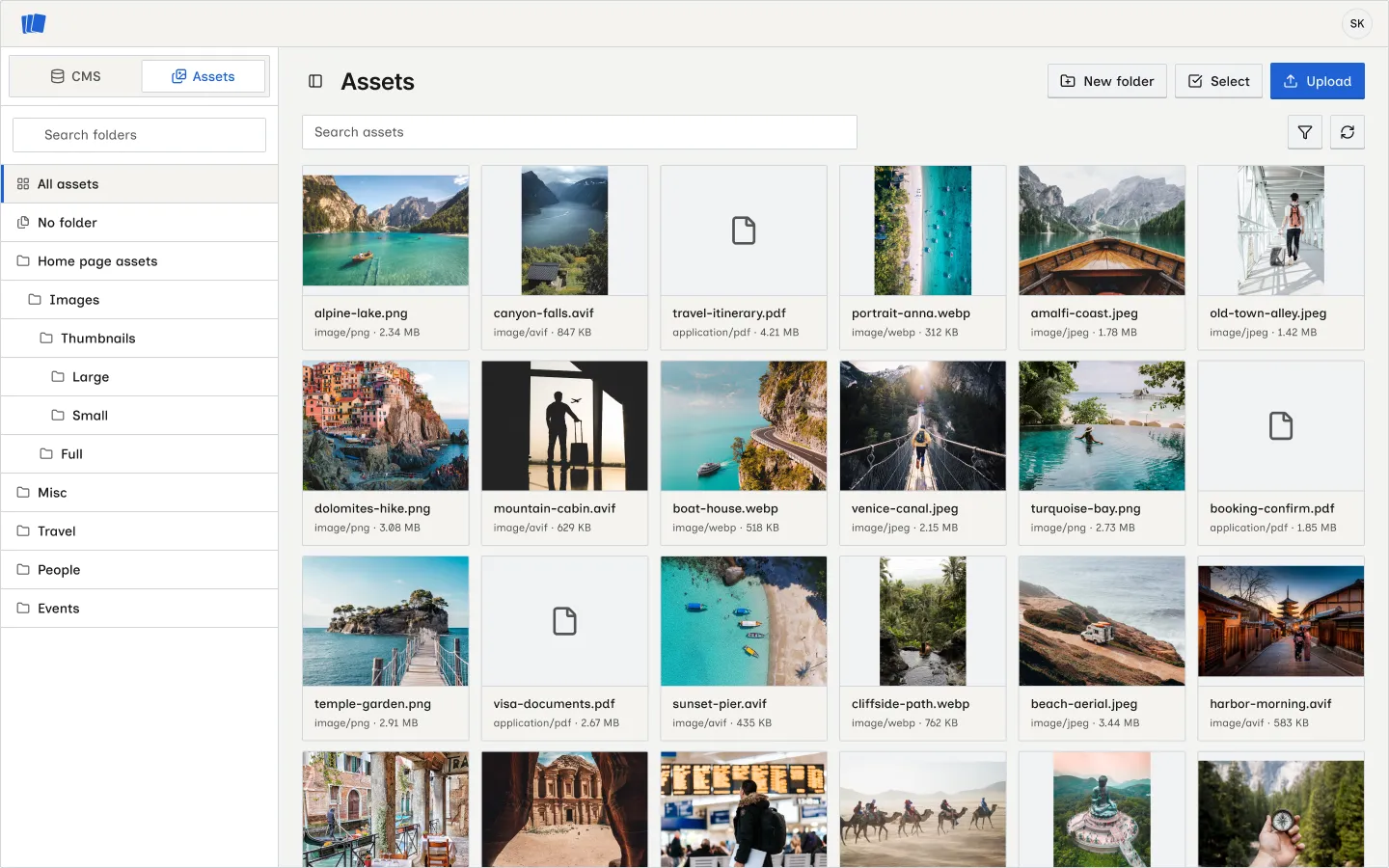
- CMS and Assets switcher in the site sidebar. Move between collection items and the asset library.
- Folder tree with All assets, No folder, and nested folders. Use Search folders to find a folder.
- Asset grid with previews, file type, and size.
- Search assets, filters by file type, format, and alt text, and Reload assets.
- Upload files, paste a link, or paste an image. You can also drag files onto the grid.
- New folder to organize uploads.
- Asset detail sheet to edit Display name and Alt text, download, or delete an asset.
- Select mode to delete multiple assets at once.
How to open Assets
Click CMS in the sidebar anytime to return to collections. Your CMS session stays in place when you switch back. See Switch between CMS and Assets and Manage assets.