

Product updates and release notes for Wicked CMS
Upload images from a link or clipboard
Add images by pasting a link or an image from your clipboard.
What’s new?
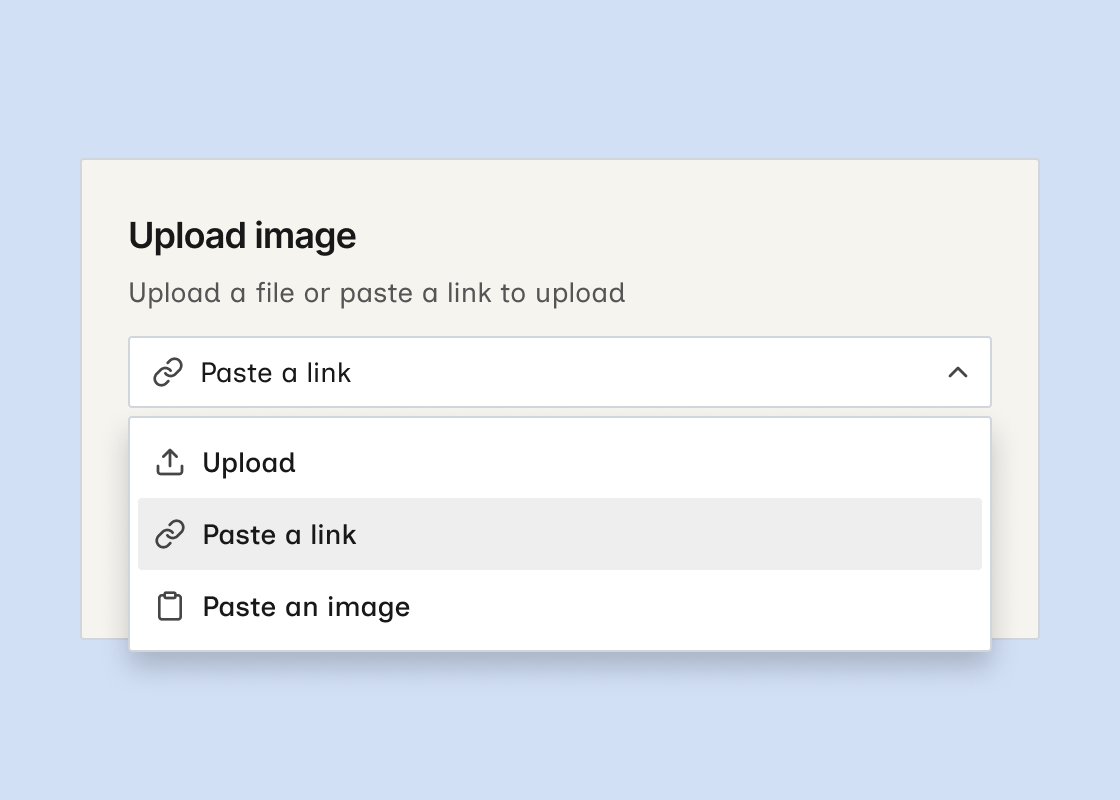
- The image dialog has Upload, Paste a link, and Paste an image options when you click Upload or Replace.
- Paste a link fetches the image from a URL and adds it to the item.
- Paste an image accepts an image from your clipboard with ⌘V / Ctrl+V or Paste from clipboard.
- These options work for Image, Multi-image, and rich text image fields. File upload remains the default.
How to add an image from a link
You can also select Paste an image in the same dialog. To choose a file or drag and drop as before, keep Upload selected.